Install the SDK
If you don't use Cocoapods then just download the SDK and set it up in your project as with any other framework.
If you use Cocoapods add this lines to your pod files:
use_frameworks!

pod 'FacebookCore'
pod 'FacebookLogin'
pod 'FacebookShare'
Use the pods that you need in your project. It is not a must to put the three of them.
Create the Facebook App
First create an App in the Facebook developer site.
Once created, check in the left panel and click on Add a product and Login with Facebook. Then you need to configure that product. You'll see some settings that by default are off. You need to turn on this two:
oAuth client access
oAuth web access
The rest of the settings must be unchanged (off by default). Leave also those URI text fields empty (since you are not making a website those are not needed)
After this, we need to configure the newly created app.
Configure the Facebook App
There is a quick configuration link available (as of Jan 2017) here
But if you want to do it manually what you need to do is to enter the Bundle Identifier in the Facebook app configuration.
Go to your Facebook app (if you were not there from the previous step) and click on Configuration. There you will find the App ID, secret key, name and such.
Scroll down and click in the Add platform button. Select iOS and add your bundle identifier there.
For now that's all you need to enter in that configuration (leave the rest empty/off or with the default values).
Configure your iOS App (in XCode)
Info.plis keys
Open your Info.plist file and insert the folowing keys:
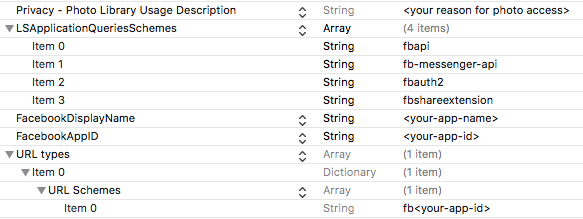
For the
Privacy - Photo Library Usage Descriptionthe key isNSPhotoLibraryUsageDescriptionFor the
URL Typesthe key isCFBundleURLTypes.
It is faster to copy paste the above keys than search for them in the dropdown menu.
You only need the Privacy - Photo Library Usage Description setting if you are going to use the camara in your app.
AppDelegate
Add these code in the AppDelegate.swift:
    func application(_ app: UIApplication, open url: URL, options: [UIApplicationOpenURLOptionsKey : Any] = [:]) -> Bool {
        return SDKApplicationDelegate.shared.application(app, open: url, options: options)
    }
In some part of the documentation it is said that you also need to implement this:
    func application(_ application: UIApplication, didFinishLaunchingWithOptions launchOptions: [UIApplicationLaunchOptionsKey: Any]?) -> Bool {
        // Your other code goes here
        SDKApplicationDelegate.shared.application(application, didFinishLaunchingWithOptions: launchOptions)

        return true
    }
Don't do it. There is a bug and the app crashes if you do.
Try Login with facebook
Now that everything is set up, you can try if your configuration is correct by using a Facebook Login button. Add this code to any view controller and try that you can login with facebook:
import FacebookLogin

func viewDidLoad() {
    let loginButton = LoginButton(readPermissions: [.publicProfile])
    loginButton.center = view.center
    // You can also add your own constraints instead of this quick-and-dirty way to center the button
    view.addSubview(loginButton)
}
If everything is fine you should see the login button, and it will bring you through the login sequence (outside of your app) if you tap on it. Once logged in the title of the button will change to "Log out".
Known bugs
AccesToken and the simulator
You can check if a user is logged in by doing
if let accessToken = AccessToken.current {
    // The user is logged in do your stuff
}
Right now there is a known bug with storing that AccessToken that gives this error in the simulator (and doesn't store the token):
Falling back to loading access token from NSUserDefaults because of simulator bug